

18 Nov How to Secure Remote Work Devices for Your Business
Quick Summary
Secure remote work devices by applying a standard set of settings to every laptop and phone, including full-disk encryption, a screen lock, automatic updates and endpoint protection. Then add multi-factor authentication to key accounts, write a short BYOD policy, and prepare a lost-device response so problems are handled quickly.
- Turn on full-disk encryption, a screen lock, automatic updates and antivirus on every device.
- Enable multi-factor authentication for email, cloud storage, accounting, remote access and admin accounts.
- Prefer an approval app or hardware security key over SMS codes for sign-in.
- Teach staff to deny and report repeated approval prompts, which can signal an MFA fatigue attack.
- Report lost devices immediately so accounts can be reset and devices locked or wiped.
Table of Contents
- Why Remote Work Devices Need a Clear Security Plan
- Step 1: Set Up Remote Work Security Best Practices on Every Device
- Step 2: Turn On Multi-Factor Authentication for Remote Workers
- Step 3: Write a BYOD Security Policy for Small Business
- Step 4: Keep Updates and Backups Running Without Relying on Staff
- Step 5: Prepare a Lost or Stolen Work Device Response
- Why Proactive Monitoring Matters for Remote Teams
- Book Your Free IT Health Check With PCFIXIT
- Frequently Asked Questions
How to Secure Remote Work Devices for Your Business
Last Updated: November 15, 2026
Why Remote Work Devices Need a Clear Security Plan
Remote work devices are now part of how most small businesses operate. Laptops, phones and tablets leave the office every day, and each one can hold client files, email and access to your systems.
Small teams of 1 to 50 people often find this the hardest part. When nobody owns the job of securing devices, it gets done inconsistently or not at all.
A good plan answers a few basic questions:
- Which devices can access business data?
- Who is responsible for keeping them secure?
- What happens when a device is lost or an employee leaves?
This guide walks through five practical steps. Each one is designed to be achievable without a full IT department.
Step 1: Set Up Remote Work Security Best Practices on Every Device
Start with the basics on every device, whether it is company-owned or personal. Consistent settings make the rest of your plan much easier to manage.
Check that each device has:
- Full-disk encryption turned on
- A screen lock with a strong passcode
- Automatic updates enabled
- Antivirus or endpoint protection running
- A password manager in use for shared and work accounts
Remote work security best practices are most effective when they are standard and repeatable. Write the settings down as a checklist and tick it off for each new device before it goes to a staff member.
Watch out: A device that is never checked after setup often drifts. Settings get turned off during troubleshooting and never switched back on.
Step 2: Turn On Multi-Factor Authentication for Remote Workers
Passwords alone are easy to steal through phishing emails or leaked data. Multi-factor authentication (MFA) adds a second check, usually a code or an approval on a phone, before someone can sign in.
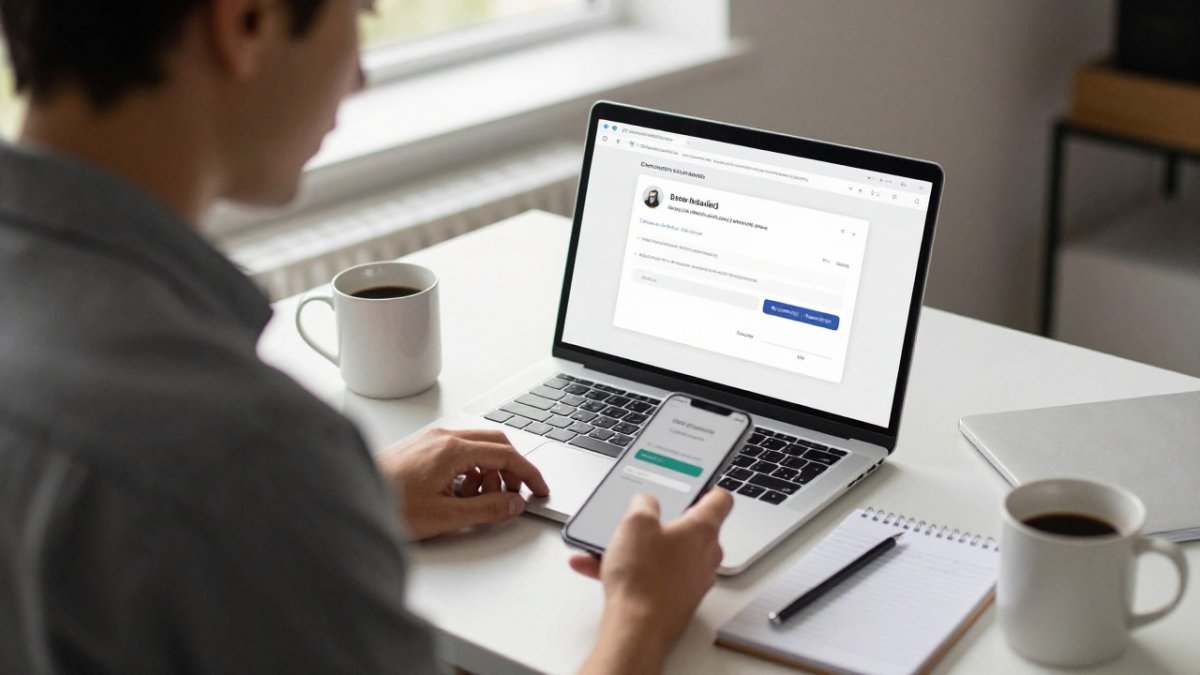
Turn it on, at minimum, for:
- Email and Microsoft 365 accounts
- Cloud file storage and shared drives
- Accounting, payroll and banking software
- Remote access tools and VPNs
- Any admin or owner-level account
Choose an approval app or a hardware security key over SMS codes where you can.
Watch out: MFA fatigue attacks work by sending repeated approval prompts until someone taps approve to stop the noise. Teach staff to deny and report repeated prompts rather than approve them.
Pair MFA with secure remote access
MFA protects the front door, but you also need to control how devices reach your systems once they are signed in.
A practical remote access setup usually includes:
- A business VPN or Zero Trust Network Access (ZTNA) tool rather than exposing remote desktop directly. Traditional VPNs put a device on the whole network once connected; ZTNA grants access to specific apps only, which limits the damage if a device is compromised.
- Per-person accounts so access can be revoked for one person without disrupting the team.
- Least privilege, staff should reach only the systems their role needs, not the entire file server.
- Session timeouts so a forgotten connection does not stay open indefinitely.
- Logging of who connected, when and from where, so unusual activity can be spotted.
If you are unsure whether your current remote access is exposed, a free IT health check is a good place to start, and the options can be explained in plain English.
The table below summarises which accounts to protect with MFA and which sign-in method to prefer for each.
| Account or area | Why MFA matters | Preferred method |
|---|---|---|
| Email and Microsoft 365 | Protects against password theft from phishing | Approval app or hardware key |
| Cloud file storage and shared drives | Stops access to shared business files | Approval app or hardware key |
| Accounting, payroll and banking | Guards financial data and payments | Approval app or hardware key |
| Remote access tools and VPNs | Blocks unauthorised entry to your network | Approval app or hardware key |
| Admin or owner accounts | Protects the highest-privilege access | Hardware security key |
| SMS codes | Can be intercepted or redirected via SIM-swap | Use only if nothing better is available |
Step 3: Write a BYOD Security Policy for Small Business
Many small teams let staff use personal phones or laptops for work. This is called BYOD, or bring your own device. It is convenient, but it blurs the line between personal and business data.
A short BYOD security policy sets clear expectations. It should cover:
- Which personal devices are allowed to access work email and files
- The minimum security settings required, such as a screen lock and updates
- How work data is separated from personal apps
- What staff must do when they change or replace a device
- What happens to business data when someone leaves
Keep the policy to one or two pages written in plain English. Staff are far more likely to follow a policy they can read in five minutes.
Step 4: Keep Updates and Backups Running Without Relying on Staff
Updates patch known weaknesses, and backups protect you when something goes wrong. Both fail when they depend on someone remembering to do them.
Set them up so they run automatically:
- Enable automatic updates for operating systems, browsers and business apps
- Schedule regular backups of company files on every device that holds them
- Store at least one backup copy away from the device itself
- Test a restore now and then to confirm the backup actually works
Automation takes the pressure off busy staff. It also gives you a consistent baseline across the whole team.
Step 5: Prepare a Lost or Stolen Work Device Response
Every business should expect that a laptop or phone will one day be lost or stolen. Having a response ready turns a panic into a routine process, and it is the part of remote work security most guides skip.
Your response should include:
- A simple way for staff to report a lost device straight away, including out of hours
- A plan to remotely lock or wipe the device and sign it out of accounts, and practical steps to reduce risk when a mobile device goes missing can help you prepare.
- A quick password reset for any accounts the device could access
- A record of what data was on the device and whether it was encrypted
- A check of sign-in logs for unusual activity after the loss
Speed matters most in the first hours. A staff member who reports a loss within minutes gives you far more options than one who waits until the next day. Practise the process once with a test device so nobody is learning it for the first time under pressure.
Physical security for devices that leave the office
Most remote work advice stops at software settings. In practice, a lot of risk sits in the physical world: a laptop left on a café table, a screen visible on a train, or an old device sold with business data still on it.
Simple habits that make a real difference:
- Use a privacy screen filter on laptops used in public, so shoulder-surfers cannot read client files or email.
- Lock the screen every time you step away, even for a minute, and set a short auto-lock timeout.
- Use a cable lock or keep the device with you in shared workspaces and hotels rather than leaving it unattended.
- Avoid working on sensitive material in crowded public spaces where screens and conversations are easily observed.
- Keep devices out of checked luggage and carry them with you when travelling.
- Wipe and dispose of devices securely when they are replaced, a factory reset is not always enough, and storage should be encrypted before disposal so residual data is unreadable.
What to do if a device is compromised
Loss and theft are only part of the picture. Remote workers also need a clear “what now” path if they suspect a hack, a strange sign-in alert, ransomware on screen, or a phishing link they clicked.
A short incident checklist helps:
- Disconnect the device from Wi-Fi and unplug any network cable.
- Do not keep using the device or try to “clean” it yourself.
- Report it to whoever manages IT immediately, with a description of what happened.
- Change passwords for key accounts from a different, trusted device.
- Watch for unusual activity in email, banking and cloud files over the following days.
Having this written down and shared with staff means the first response is calm and consistent rather than improvised. It also gives your IT provider the information they need to contain the issue quickly.
Why Proactive Monitoring Matters for Remote Teams
Setting up devices correctly is only the start. Remote teams change constantly, with new laptops, new starters, software updates and new online threats.
Proactive monitoring means someone is checking devices and systems on an ongoing basis, not just when something breaks.
This is the approach behind our ProactivCare managed services.
For ideas on keeping your business ready for unexpected events, our guide on 10 tips to help small businesses get ready for the unexpected covers practical planning steps.
Book Your Free IT Health Check With PCFIXIT
Not sure where your remote devices stand? We offer a free IT health check for Gold Coast and Tweed Heads businesses, and we support teams across Brisbane, Logan and Australia-wide as well. During a health check we can look at your devices, accounts, backups and MFA setup, then explain what we found in plain English.
To get started, book a free IT health check and tell us a little about your team. From there we can show you what is working well and what needs attention, with no obligation.
Frequently Asked Questions
How do I secure a device used for remote work?
Start with the basics on every laptop or desktop: keep the operating system and applications up to date, turn on full-disk encryption, use a strong password or PIN with a screen lock, and make sure built-in endpoint protection is switched on. Limit local admin rights so staff cannot install unknown software, and set devices to lock automatically after a short period of inactivity. For a small business, the most effective step is applying these settings consistently across every device rather than relying on each person to set them up. A managed IT provider can apply the same baseline to every machine and check it regularly, so gaps are found before they become problems.
Should employees use personal devices for work?
Sometimes, but only with clear rules. A BYOD security policy for small business should state which apps staff can use on personal phones and laptops, require screen locks and encryption, allow business data to be removed remotely, and explain what happens when someone leaves the business. Many small businesses find it simpler to supply company devices for staff who handle client files or financial data, and allow personal devices only for limited tasks like email with strict controls. Whichever approach you choose, write it down and review it once a year.
Do remote workers need a VPN to access business systems?
Not always. Many business systems, including Microsoft 365, can be secured with multi-factor authentication and conditional access rules without a traditional VPN. A VPN can still be useful when staff reach older on-premises systems or shared drives, but it should be set up and monitored properly rather than left to run on its own. The right answer depends on what your team uses every day, so it is worth reviewing your remote access setup with an IT adviser before deciding.
What should I do if a remote work device is lost or stolen?
Act quickly. The staff member should report the loss to you immediately, and you should block sign-in for that user, revoke active sessions, and remotely lock or wipe the device if it is managed. Change passwords for any accounts that were logged in, and check sign-in activity for unusual access. Keep a simple written response plan so everyone knows who to call and what to do, including after hours. Having this ready beforehand means a stolen laptop becomes an inconvenience rather than a data breach.

No Comments